Web Browser
Configure your assistant to use the Web Browser plugin for web search and access.
Functions
| Function | Description | Permission(s) |
|---|---|---|
| Web Search | Perform a web search. | Access Network |
| Visit Webpage | Capture a snapshot of a web page's content and basic info. | Access Network |
Configuration
You can choose to use Google, Brave, Bocha, Tavily, Jina, UniFuncs or SearXNG as your search engine.
Via Google
This tutorial will guide you through the process of using Google as a web search service in Everywhere.
Google's Custom Search JSON API offers 100 free search queries per day (see developer documentation)
The Google search service currently only supports access in some countries and regions. If your region is not supported, it is recommended to use other search services.
Preparation
- A Google account
- If you have already created a project in Google Cloud, you can use the existing project directly.
Steps
- Go to the Google Cloud Console and log in to your account.
- After logging in, find the current default project, usually "My First Project," in the top left corner of the page. Click it to open the Project selector.
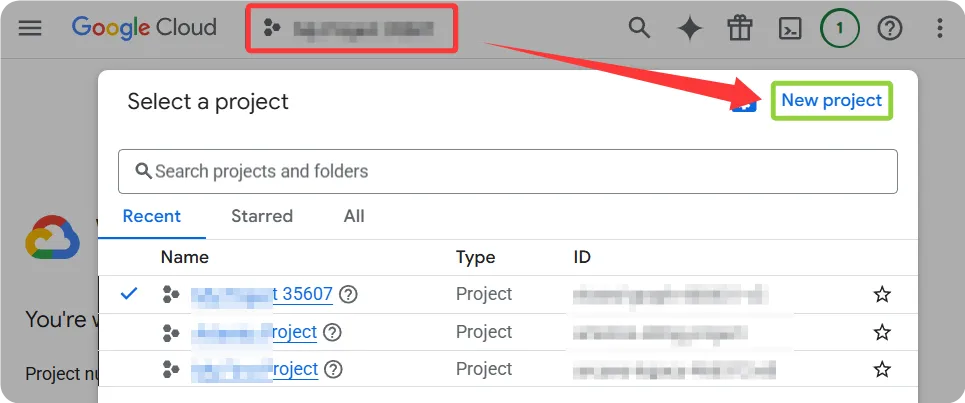
- In the Project selector, click the "New Project" button in the top right corner. This will take you to a new page where you can enter a project name. The organization field can be left blank.
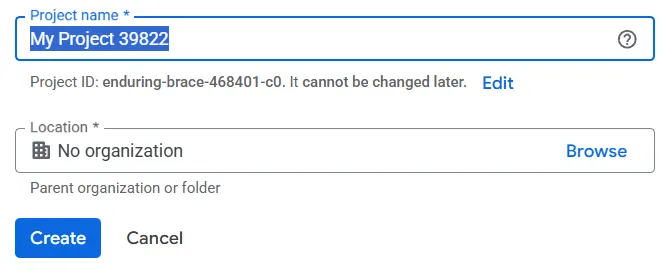
- After successfully creating the project, go to the Programmable Search Engine Control Panel and click the Add button in the top right corner.

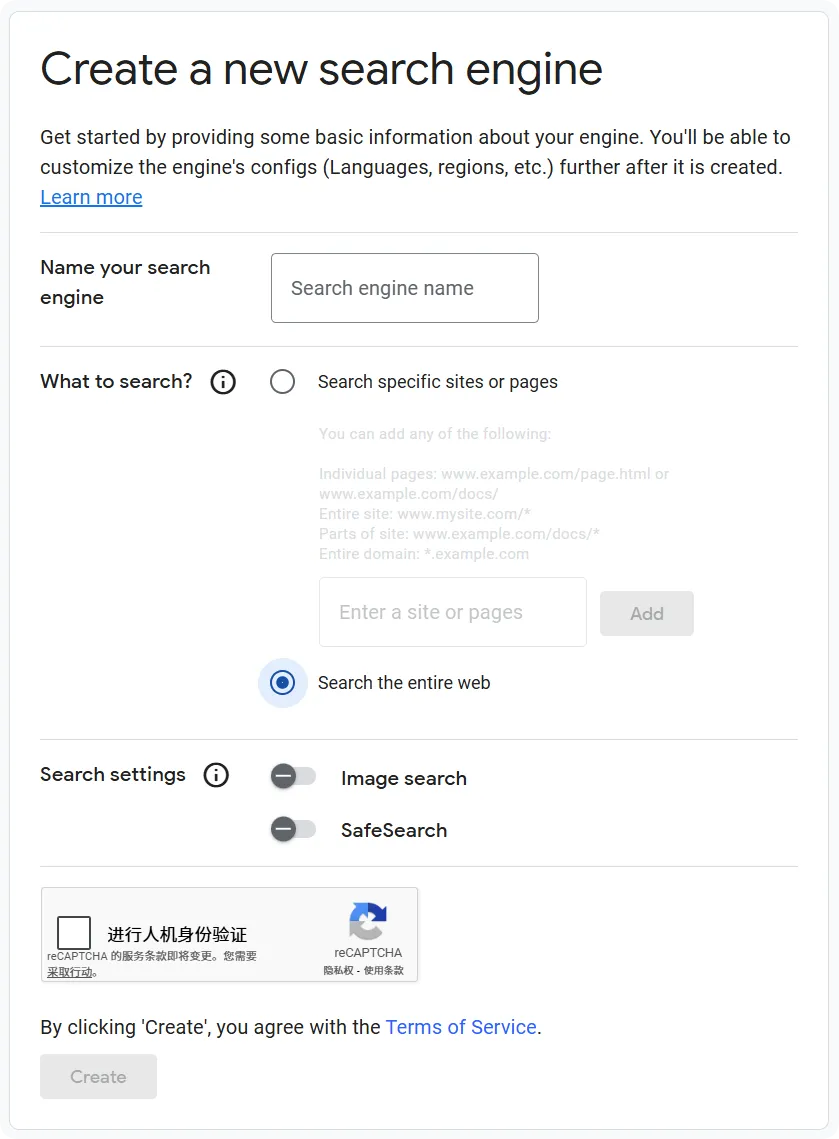
- In the form, enter a memorable name in the Name your search engine input box, select Search the entire web for What to search?, and leave the other settings at their defaults. After completing the CAPTCHA, click Create.
- After the creation is successful, click Customize to enter the management page.
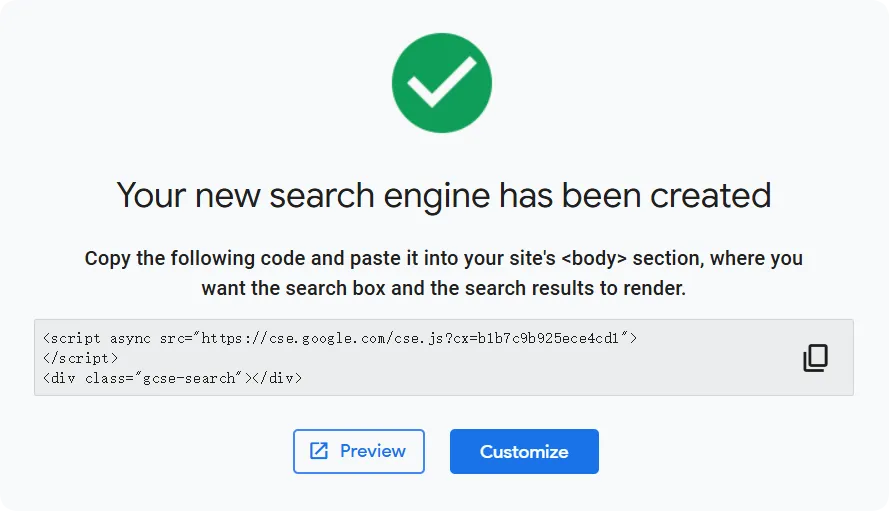
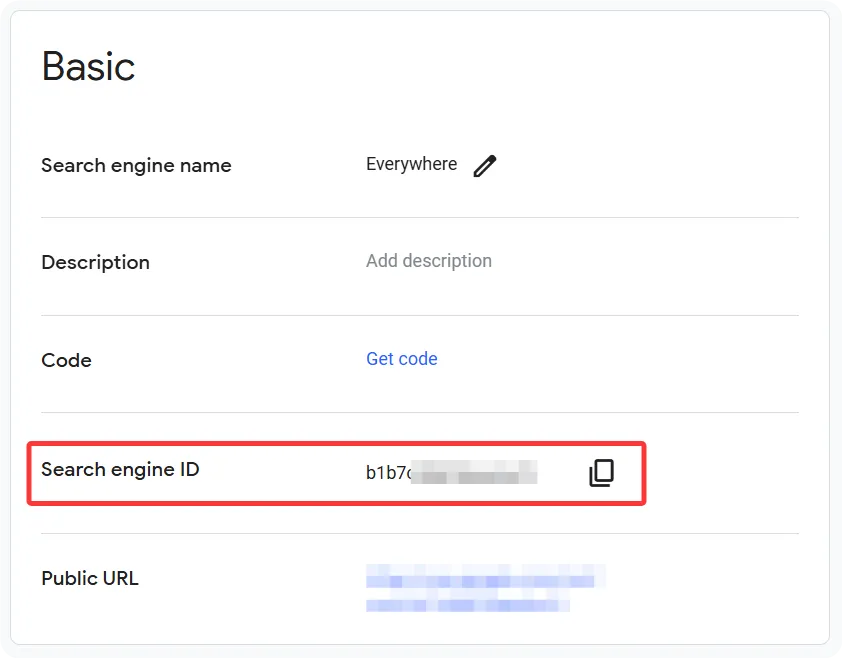
- In the Basic card, find the Search engine ID and copy it to the Search engine ID configuration item in Everywhere.
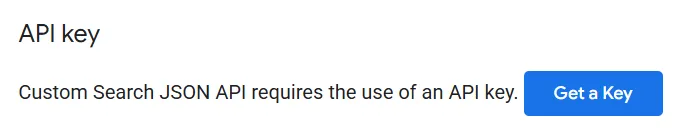
- After visiting the Custom Search JSON API Guide, find the API key section and click Get a Key.
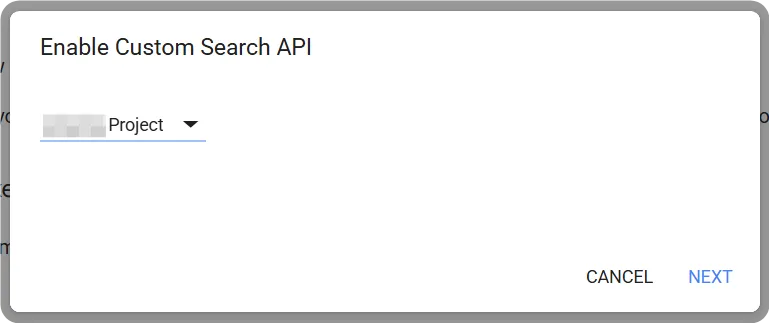
- In the pop-up page, select the previously created project and click NEXT.
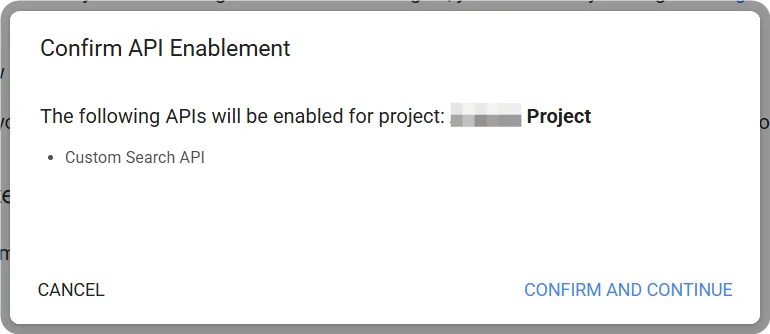
- Click CONFIRM AND CONTINUE to confirm enabling the Custom Search API in your project.
- After successfully enabling, click SHOW KEY to see the API key. Copy this key to the API key configuration item in Everywhere to use Google's search service.
Please make sure to keep the API key safe, as it will only be displayed once (if possible, also save a copy of the search engine ID for future use). If you accidentally close the dialog, you can click Get a Key again to regenerate a new key following the process.
Privacy
Please note that the API key is sensitive information. Do not disclose it to anyone or share it in public.
Via Brave
This tutorial will guide you through the process of using Brave as a web search service in Everywhere.
The Brave search service currently only supports access in some countries and regions. If your region is not supported, it is recommended to use other search services.
Preparation
- Register and log in to a Brave account
- May require a valid payment method, such as Google Pay or debit/credit card
Steps
- Visit the Brave Search API Dashboard
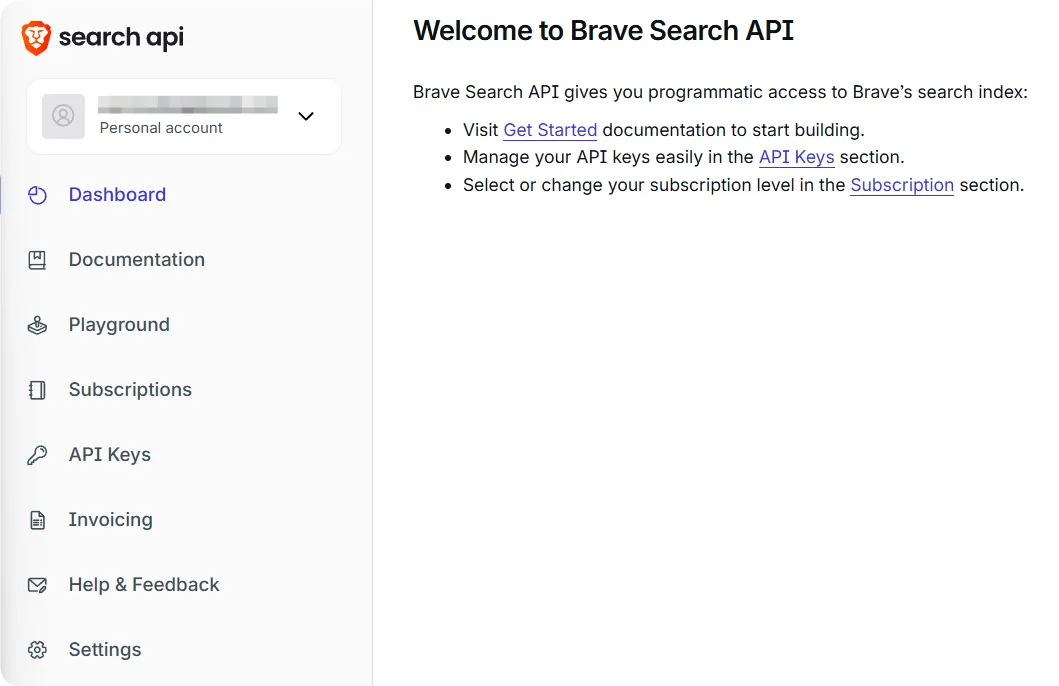
- In the left sidebar of the page, click Subscriptions, select the subscription plan you need, and click Subscribe. (Here, the selection is a free plan)
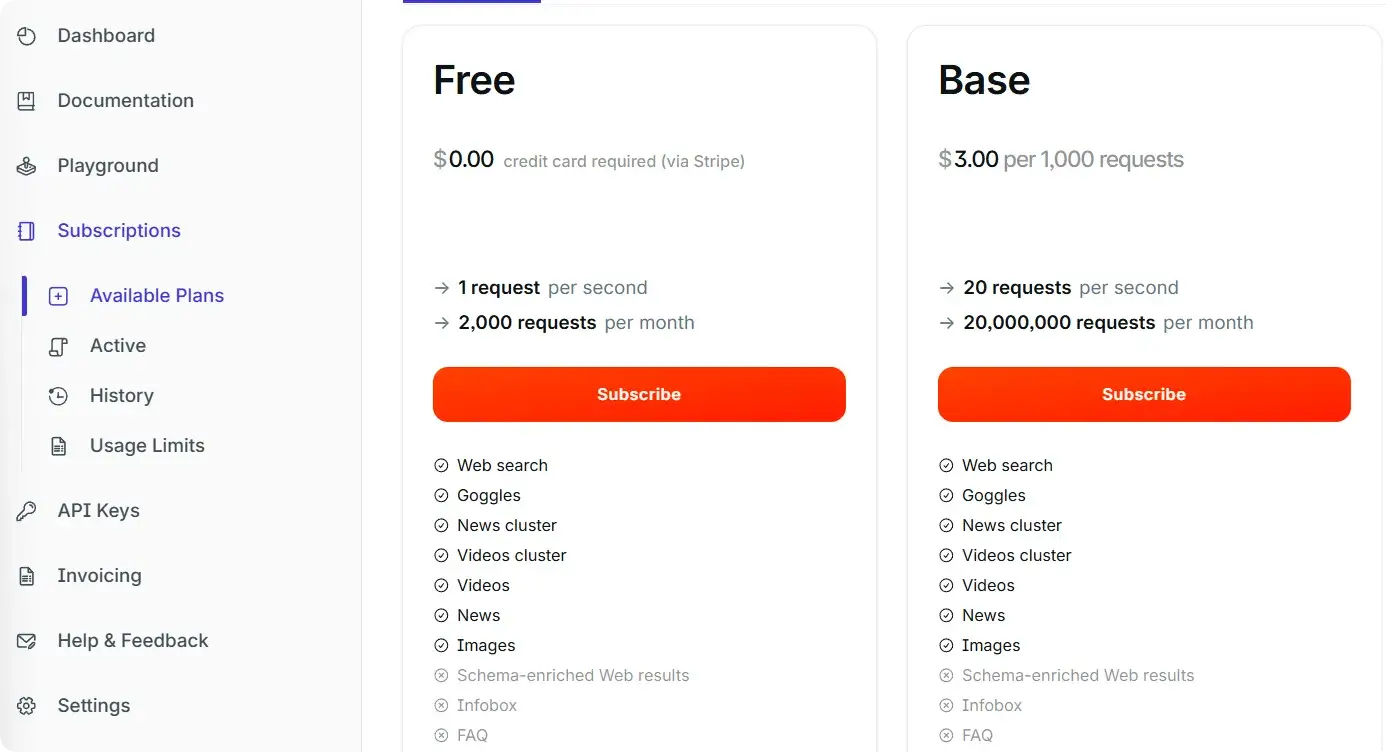
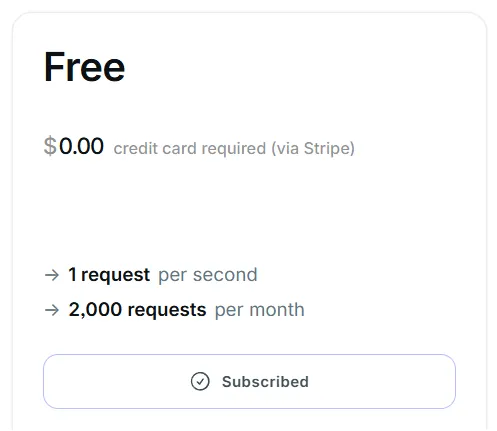
- Read and agree to the terms, enter the payment interface to select your payment method, and complete the subscription. Return to the Subscriptions page to ensure that your plan has been successfully subscribed.
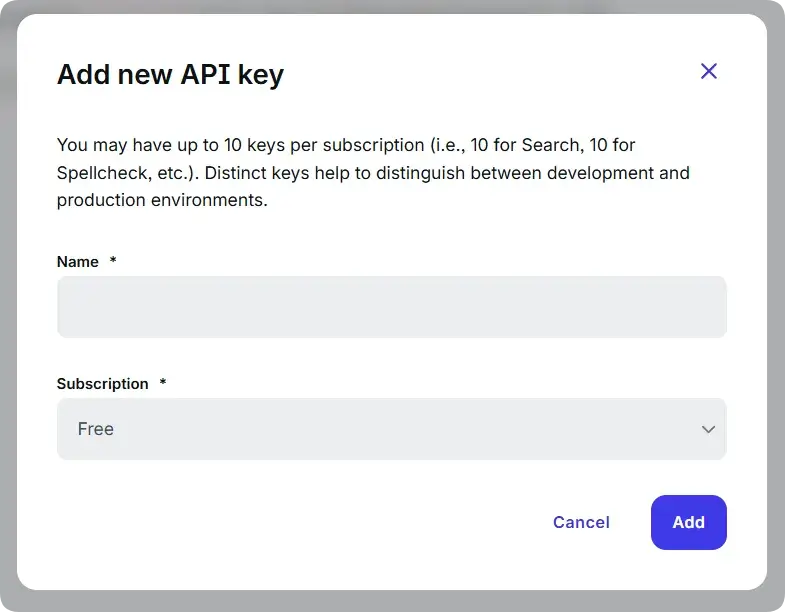
- Click API Keys in the left sidebar, and then click Add API key in the upper right corner. In the pop-up dialog, fill in a memorable name in the Name field, select the plan you just subscribed to in the Subscription field, and click Add.
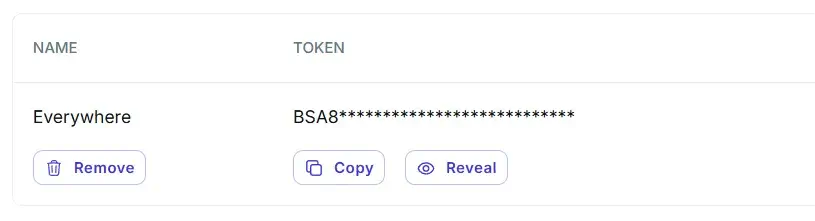
- After successful creation, you will see the API key you just created. Click the Copy button to copy the key to the API Key configuration item in Everywhere to use Brave's search service.
Privacy
Please note that the API key is sensitive information. Do not disclose it to anyone or share it in public.
Via Bocha
This tutorial will guide you step by step on how to use Bocha as a web search service in Everywhere.
Bocha service login only supports WeChat accounts. If WeChat login is not available in your region, it is recommended to use other search services.
Preparation
Steps
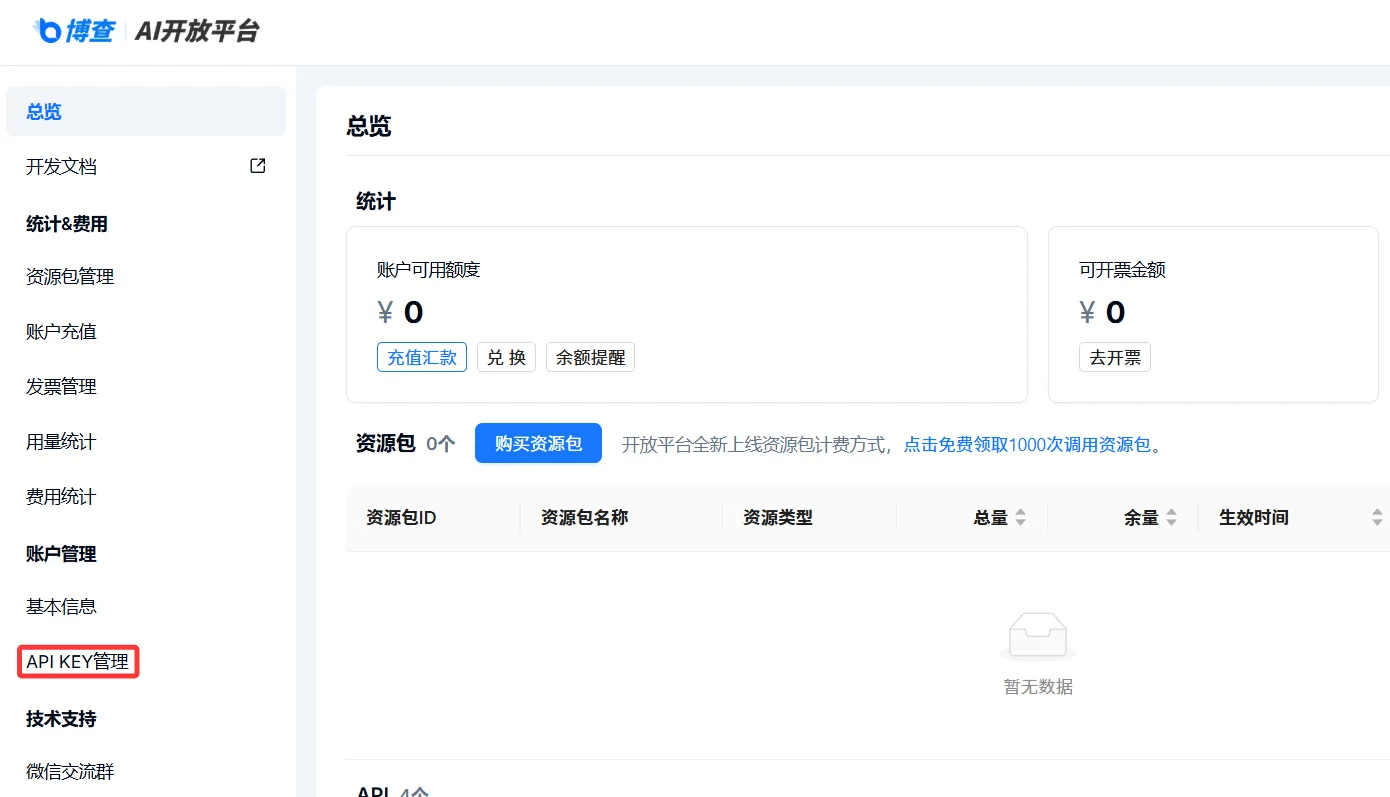
- Visit the Bocha AI Open Platform and click API KEY管理 in the left sidebar.
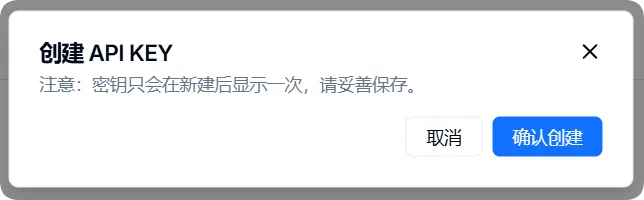
- Click 创建 API KEY, and in the pop-up dialog, click 确认创建.
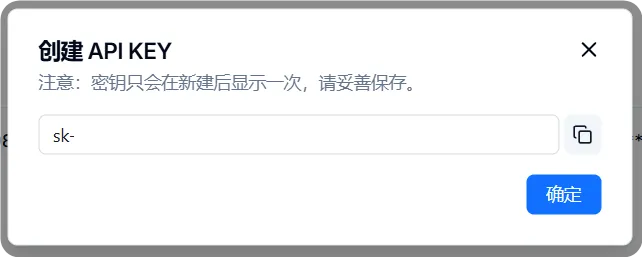
- After successful creation, you will see the API key you just created. Click the copy button on the right to copy the key to the API Key configuration item in Everywhere to use Bocha's search service.
Please note that the API key is sensitive information, please do not disclose it to anyone or share it in public.
Via Tavily
This tutorial will guide you step by step on how to use Tavily as a web search service in Everywhere.
Preparation
- Register and log in to Tavily in the upper right corner of the official website.
Steps
- Visit the Homepage and find the API Keys section on the Overview page.
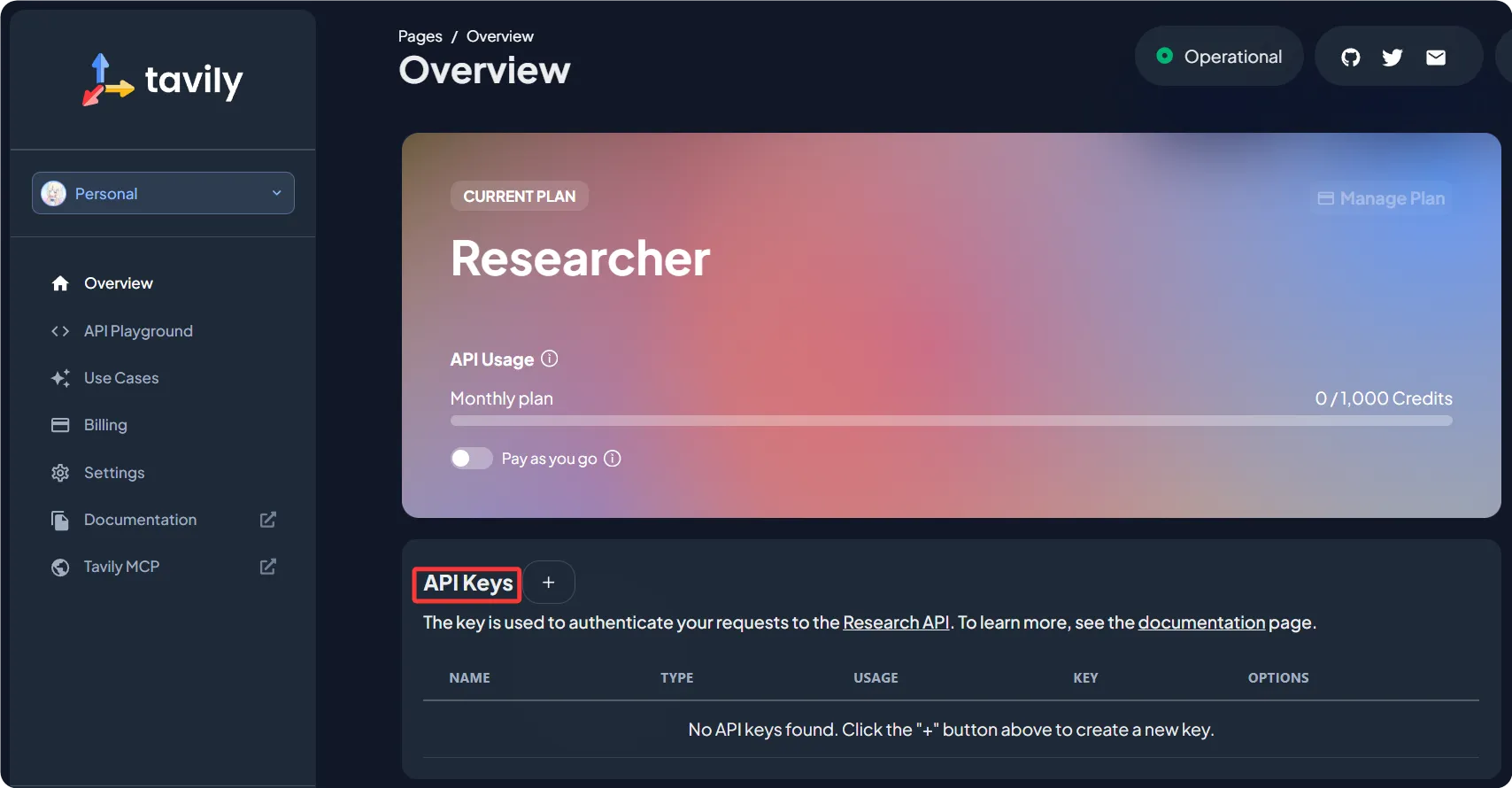
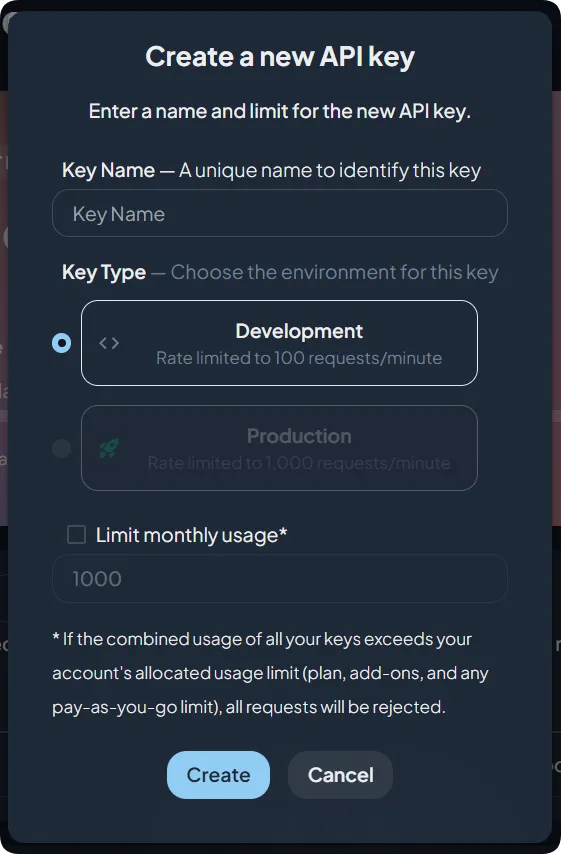
- Click the plus button next to it to open the creation dialog. Enter a memorable name in the Key Name field and click Create.
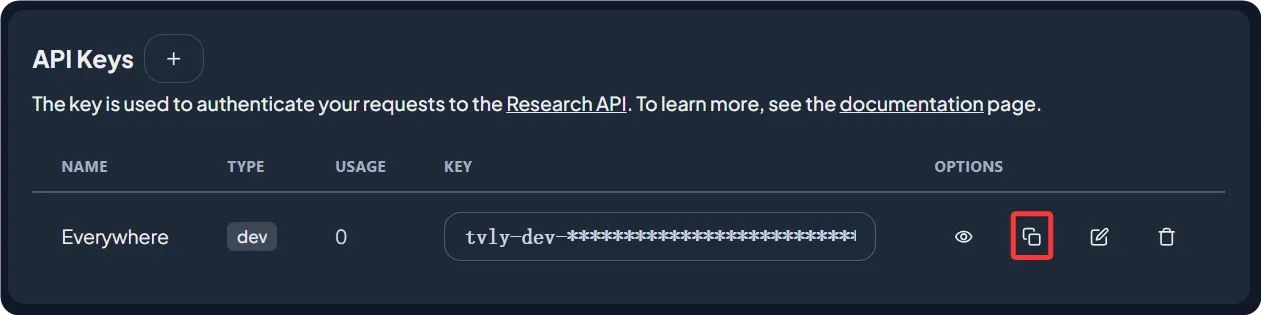
- After successful creation, you will see the API key you just created. Click the copy button on the right to copy the key to the API Key configuration item in Everywhere to use Tavily's search service.
Privacy
Please note that the API key is sensitive information. Do not disclose it to anyone or share it in public.
Via Jina
This tutorial will guide you step by step on how to use Jina as a web search service in Everywhere.
Preparation
- Register and log in to Jina in the upper right corner of the official website.
Steps
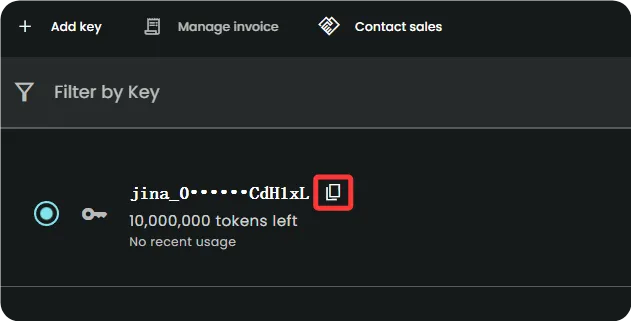
- Visit the Dashboard and find the Manage API Key section in the sidebar.
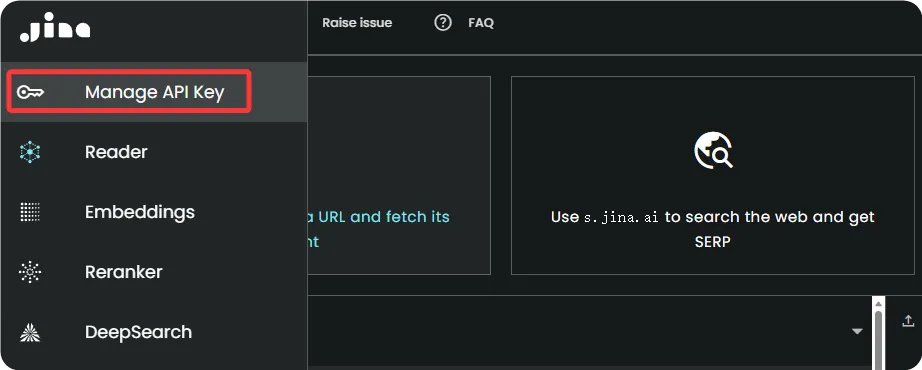
- Jina ensures that your account has at least one API Key. Click the copy button next to the key to copy it to the API Key configuration item in Everywhere to use Jina's search service.
Privacy
Please note that the API key is sensitive information. Do not disclose it to anyone or share it in public.
Via UniFuncs
This tutorial will guide you step by step on how to use UniFuncs as a web search service in Everywhere.
Preparation
- Register and log in to UniFuncs in the upper right corner of the official website.
Steps
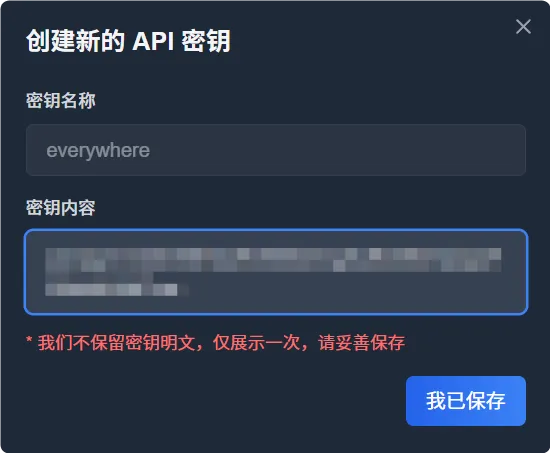
- Visit 我的账户, and click 新建密钥 in the top right corner of the API Key section.

- In the pop-up dialog, enter a memorable name in the 密钥名称 field and click 创建. Copy the 密钥内容 that appears to the API 密钥 configuration item in Everywhere to use UniFuncs' search service.
Privacy
Please note that the API key is sensitive information. Do not disclose it to anyone or share it in public.
How is this guide?
Last updated on