Quick Start
What if I accidentally close Everywhere?
You can find the Everywhere icon in the system tray (bottom right corner on Windows, top right corner on macOS) and double-click to open the main interface of Everywhere.
You can get the latest version of Everywhere here.
When you run Everywhere for the first time, you will see the welcome page.
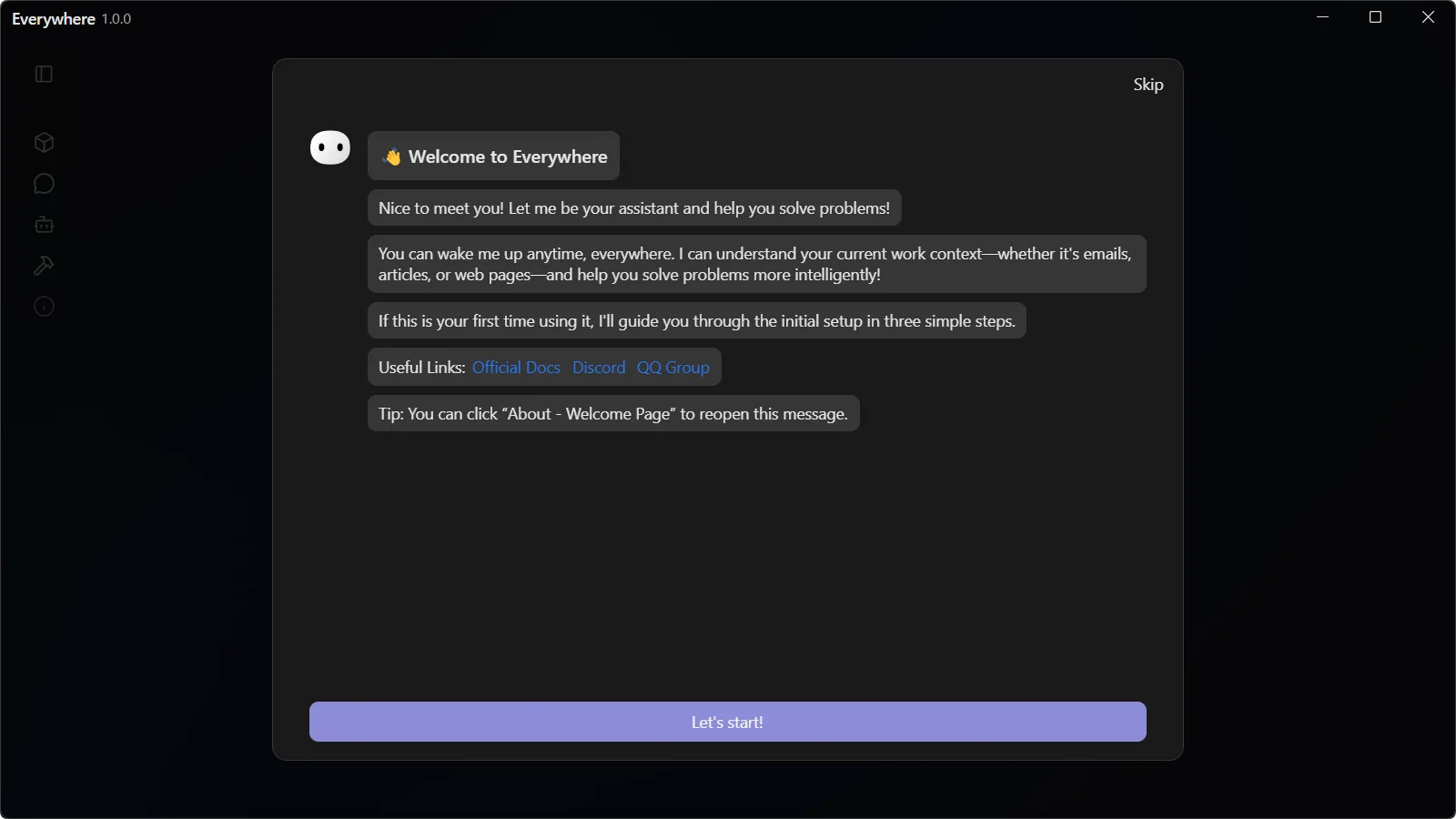
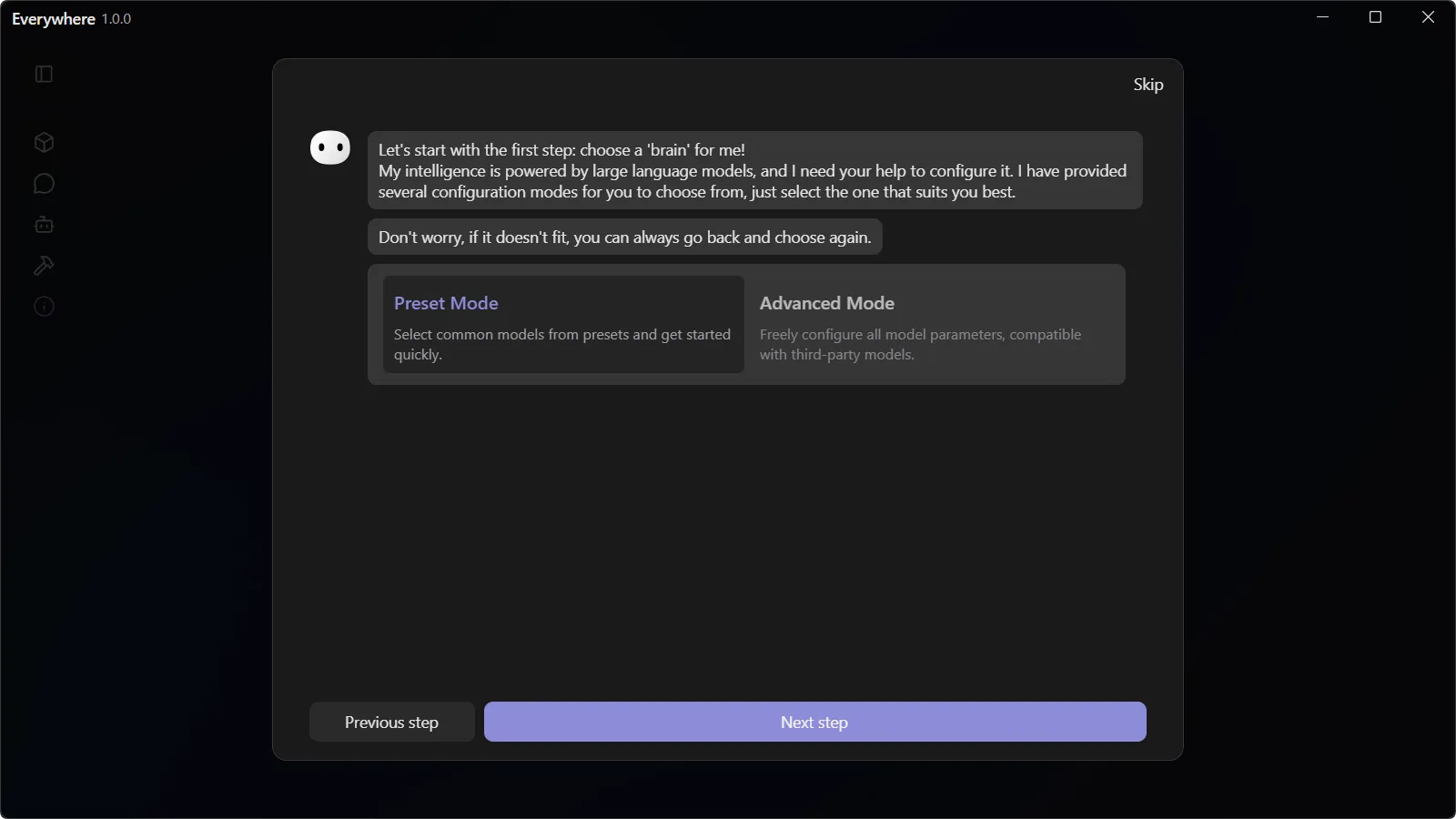
Click the Let's start! button and choose your AI model provider setup mode.
Here, We use the Preset Mode as an example:
- Preset Mode: Only fill in common configuration items. Everywhere will complete other settings based on the selected model provider, suitable for most users.
- Advanced Mode: Allows you to customize more configuration items, suitable for users with specific needs or using unofficially supported model providers.
For providers such as Ollama and OpenRouter, it is recommended to use Advanced Mode for configuration to have more flexibility in selecting models.
Other Model Providers
If the model provider you want to use is not available in Preset Mode, please switch to Advanced Mode.
For more information, please refer to the FAQ.
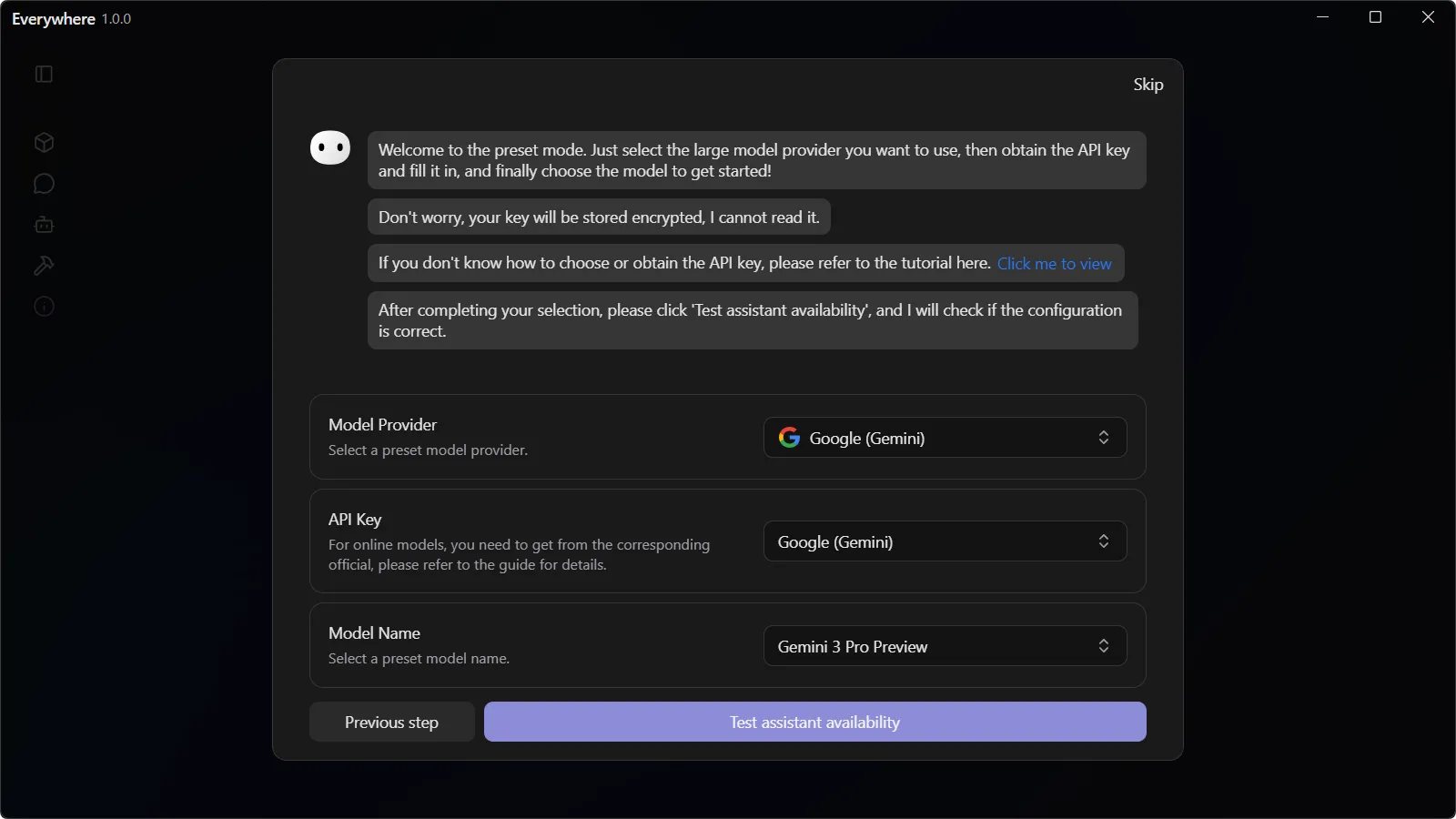
In Preset Mode, you need to:
- Select a supported model provider.
- Create a new API Key or select a previously saved API Key.
- Choose the model name.
Payment and Acquisition
Most model providers' APIs require paid calls. Please ensure you have obtained a valid API Key and have sufficient balance in your account. Also, subscriptions and API services for each provider are billed separately, so subscribing to a service does not mean you can use its API for free.
You can refer to the Model Providers section to learn how to obtain API Keys for each model provider.
Network Environment
For some model providers including OpenAI, you may not be able to directly access their API services. If you encounter network errors when verifying the API Key, please try using other models or set up a proxy or relay service.
Privacy
Please note that API keys are sensitive information. Do not disclose them to anyone or share them in public places.
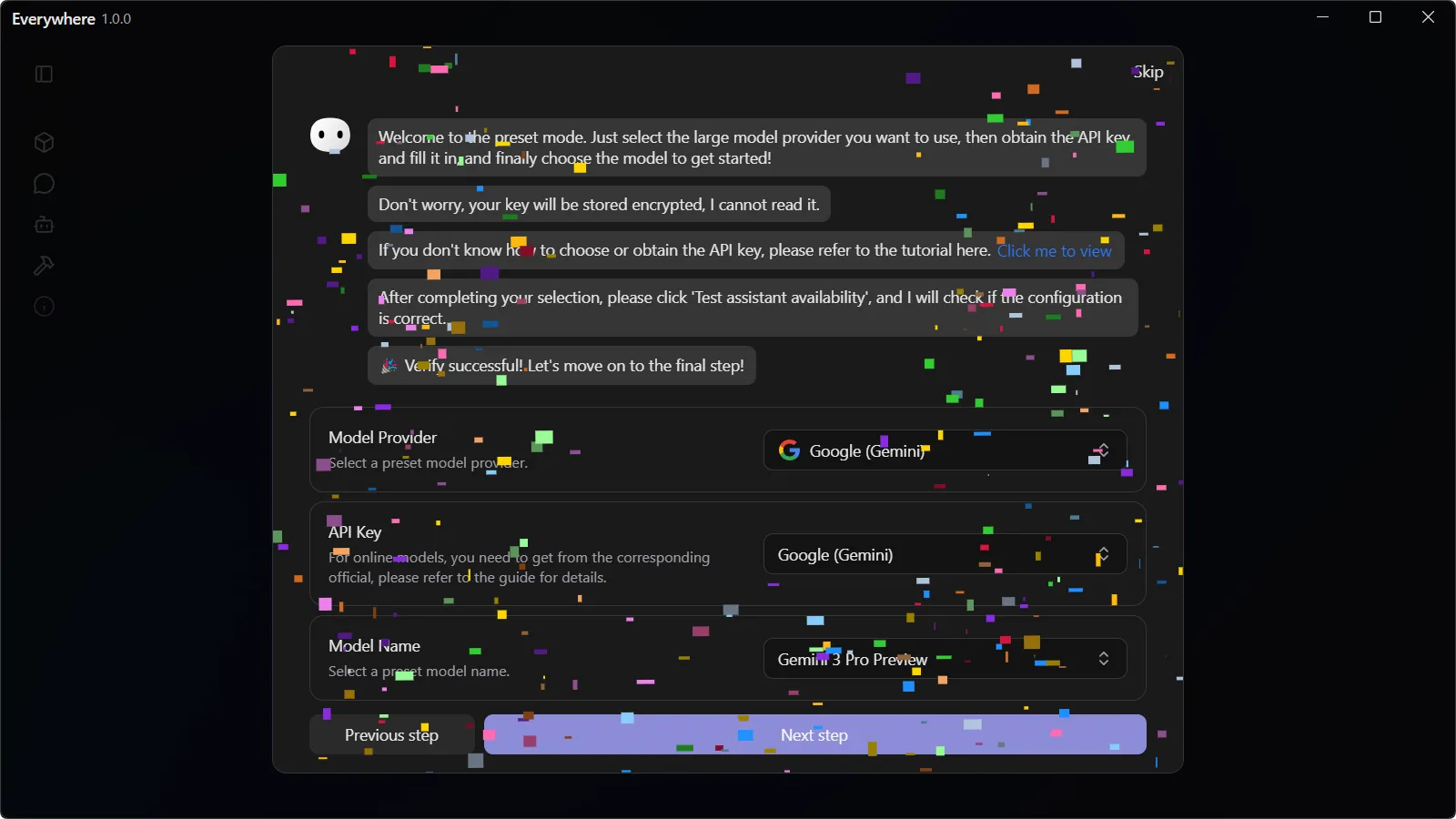
After completing the configuration items, please click the Test Assistant Availability button. If everything goes well, you will see a ribbon animation, and you can click Next step:
You can modify the shortcut key (Ctrl + Shift + E or Cmd + Shift + E) to call out Everywhere as needed:
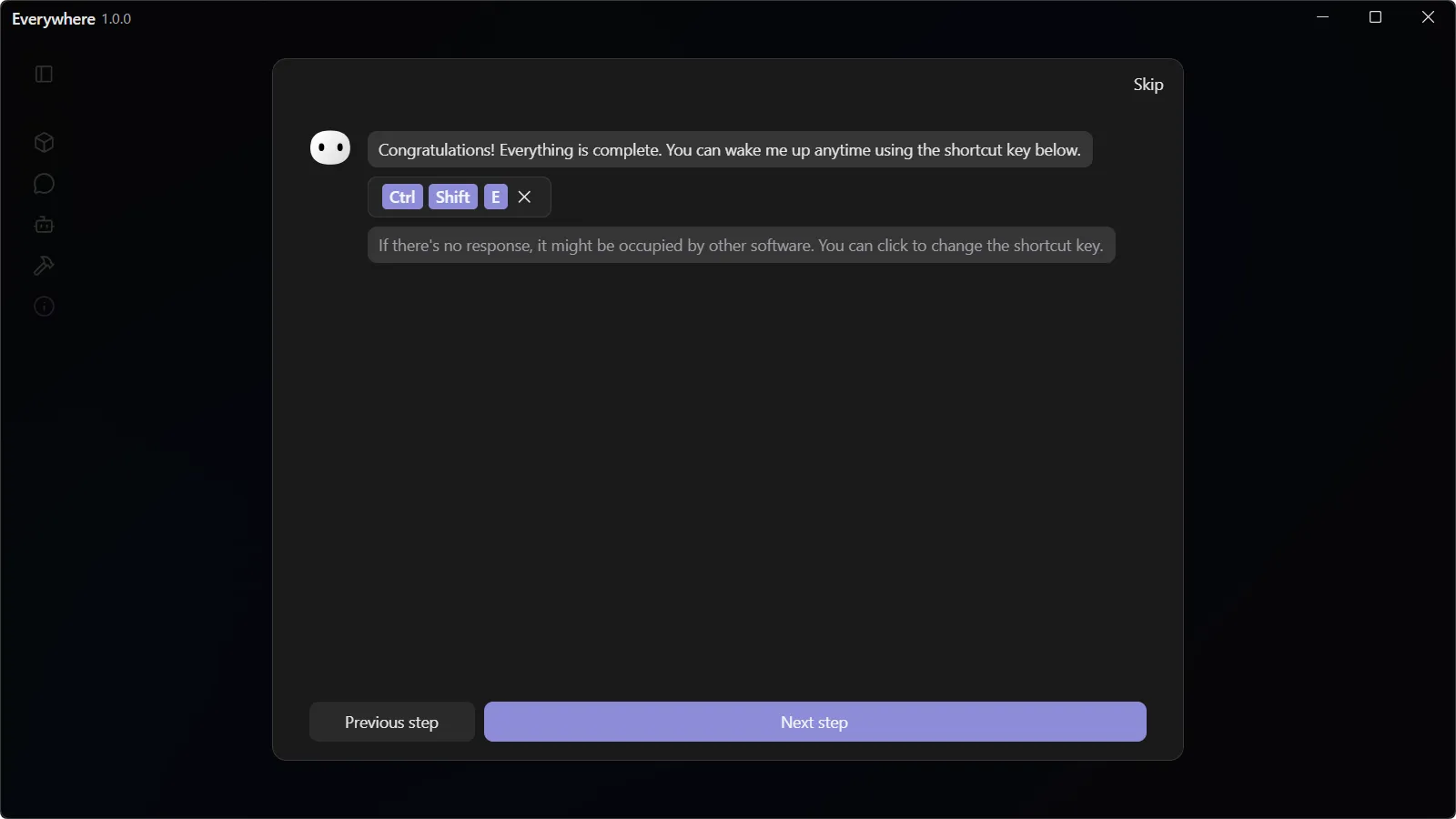
Copilot Key
For Windows users, if your keyboard has a Copilot key, you can use it as a shortcut key.
You can choose to join the User Experience Program to help us improve Everywhere:
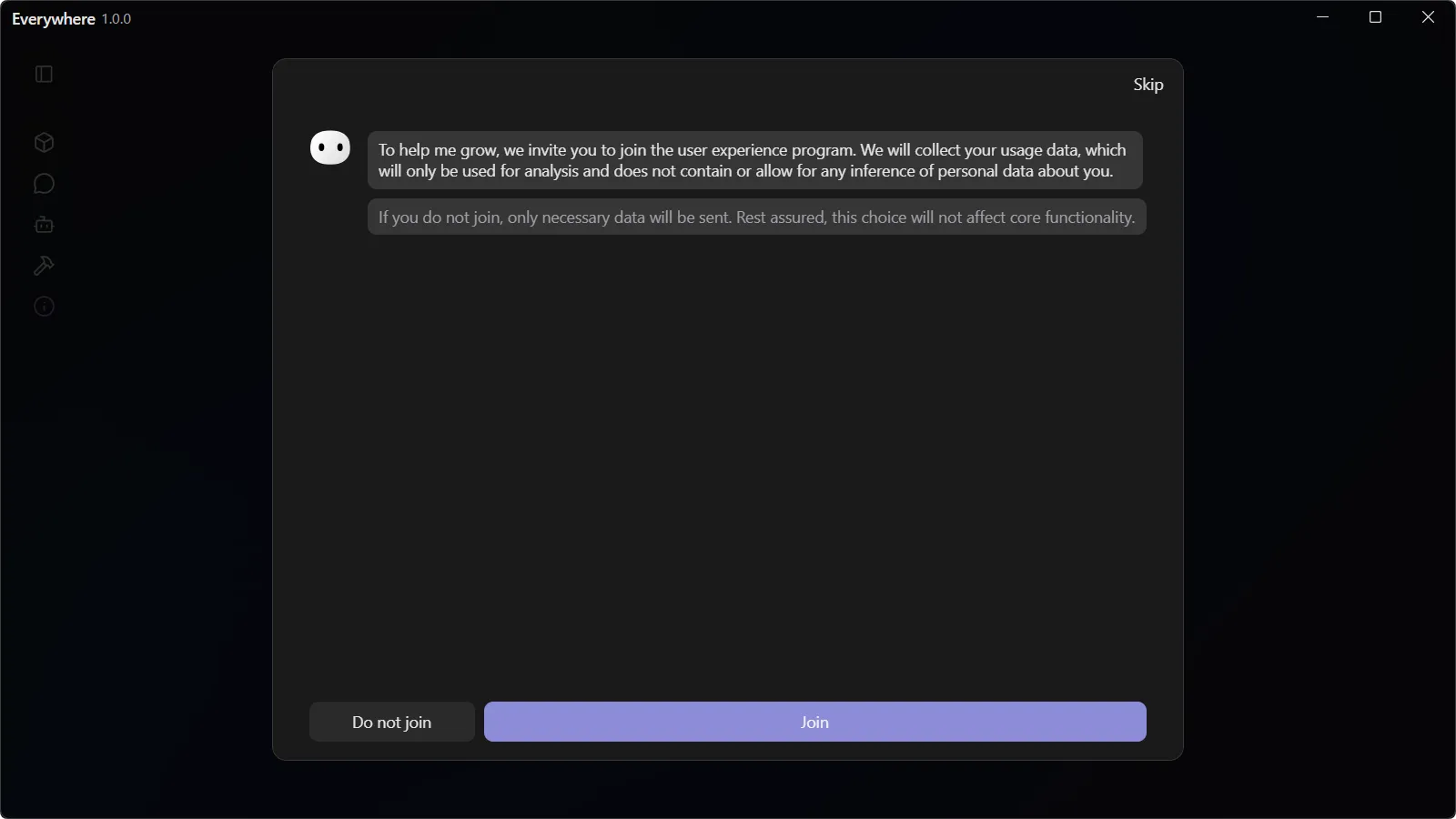
Privacy
Everywhere takes user privacy very seriously. Telemetry data is anonymous and does not contain personally identifiable information, nor does it include sensitive information such as API Keys. You can choose Do not join to maximize privacy protection.
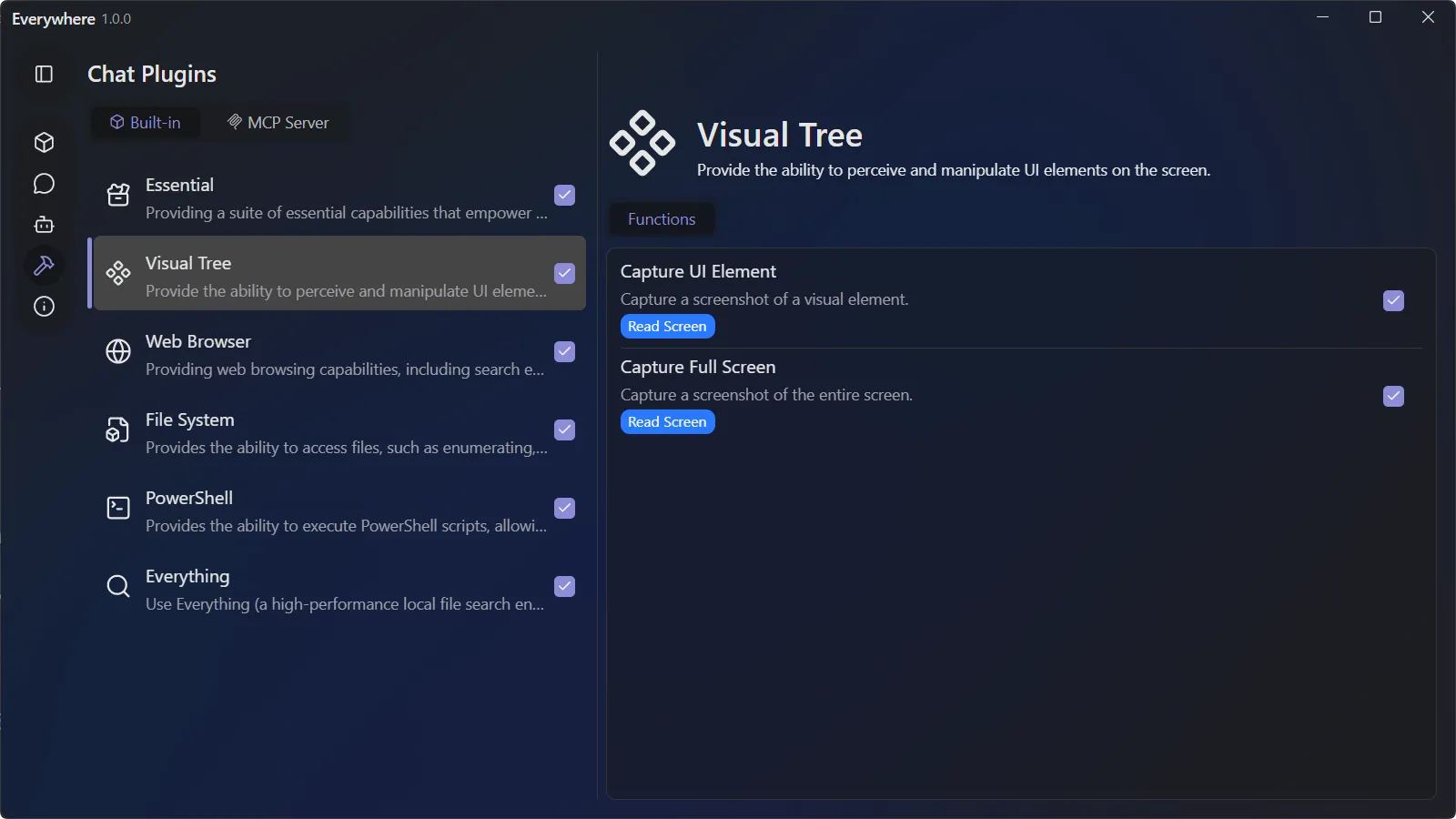
After that, you will enter the main interface of Everywhere and can start using it. Note that Everywhere requires additional plugins to support specific features. You can click on the Chat Plugins in the software sidebar for detailed settings:
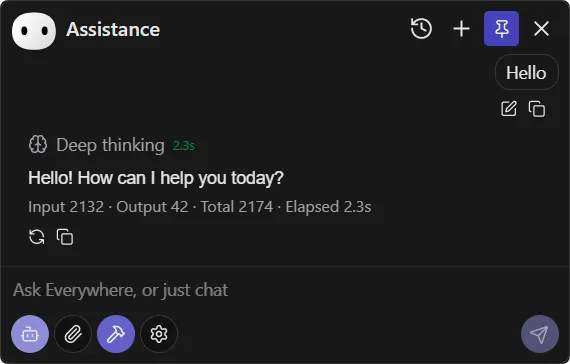
At this point, you have completed the initial setup of Everywhere. You can call it out using the shortcut key and start enjoying Everywhere!
How is this guide?
Last updated on