Saving Tokens
Learn how to better manage and optimize token consumption in Everywhere to reduce your API usage costs.
Every request you make to the assistant consumes tokens, and token consumption directly determines your API usage costs. With the right configuration and habits, you can significantly reduce token overhead while still getting high-quality responses.
This guide covers a set of practical token optimization strategies.
Visual Context
Visual context is the core mechanism Everywhere uses to perceive and understand screen content — but it is also one of the largest sources of token consumption. Fine-tuning your visual context settings is the first step toward cost control.
In the chat window, click the Settings icon button to find the visual context options:
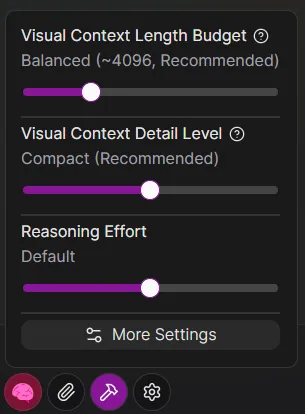
Length Budget
- Effect: This setting limits the maximum number of tokens the visual tree text can occupy in each request.
- Recommendation: For most daily tasks, Balanced is sufficient. A limit that is too low may prevent the model from receiving enough screen information, while a limit that is too high will significantly increase the cost of each request.
The value shown is an estimate. The actual number of visual tree tokens sent to the model may vary slightly depending on the complexity and structure of the visual tree content.
Verbosity
- Effect: This setting controls how richly the elements in the visual tree are described. Higher verbosity provides more context information but also increases token consumption.
- Recommendation: Compact is recommended.
Automatically Add Element
By default, Everywhere may automatically attach visual information for the current focus element when invoked. If you do not need the model to perceive screen content, you can disable Automatically Add Element in Chat Settings from the main window.
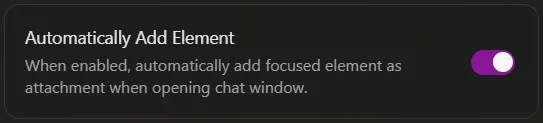
Once disabled, only add visual elements as attachments in the Chat Window when you explicitly need the assistant to see your screen. For pure text interactions — such as writing code, translating, or casual conversation — this can save a considerable number of unnecessary tokens.
System Prompt
The System Prompt is a set of instructions preset for the model, guiding it on how to understand and execute tasks. Thoughtful design and management of your system prompt is key to controlling token consumption.
Everywhere provides a default system prompt for general use cases. Please refer to the documentation for details.
If you have configured a custom system prompt for a custom assistant, review its contents carefully.
- Remove redundant instructions or rules that are no longer applicable.
- Keep instructions concise. An overly long prompt not only increases costs but may also distract the model's attention.
Parallel Tool Calls
When using a custom system prompt, it is recommended to explicitly allow the model to make parallel tool calls.
Parallel calling allows the model to request multiple tools simultaneously within a single response, reducing the number of conversation turns. This directly prevents repeated context accumulation from multiple back-and-forth interactions, thereby saving tokens.
Example
You can include the following snippet in your system prompt to encourage the model to work in parallel:
When multiple independent tool calls are needed, you SHOULD make them in parallel instead of sequentially.
Conversation Management
Start a New Conversation Promptly
As a conversation grows deeper, historical messages accumulate continuously, making the context longer with each subsequent request and increasing token consumption accordingly.
When you finish one topic and are ready to start a new task, always create a new conversation manually.
Clearing the context not only resets the token count to zero, but also eliminates interference from old information, helping the model focus more precisely on the new task.
Plugins & Tools
Enable Plugins On-Demand
Click the Tools icon button in the chat window to manage your currently enabled plugins.
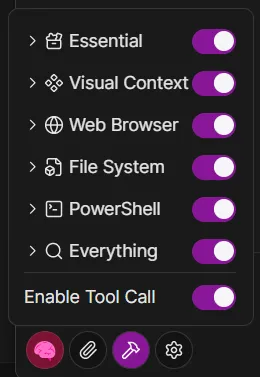
Each enabled plugin has its tool definition — including name, description, and parameter schema — injected into the system prompt, increasing token consumption.
We recommend enabling only the plugins required for your current task. For example, disable file operation or network request plugins when doing creative writing; enable them again only when external data is needed.
Text-Only Conversation
If your current task involves only question answering, creative writing, translation, or other work that requires no external tools, we recommend disabling the Tool Calls master switch directly in the chat window.
In this mode, the model will not consider any tool call-related prompt content at all, focusing entirely on text generation and significantly reducing token consumption.
How is this guide?
Last updated on