FAQ
Find answers to common questions about Everywhere.
Payments
I subscribed to ChatGPT Plus/Team/Pro or a similar service, why am I being told my balance is insufficient?
ChatGPT Plus/Team/Pro or Google AI Pro subscription services are billed separately from the API services.
You need to top up your balance for the API services separately.
Model Providers
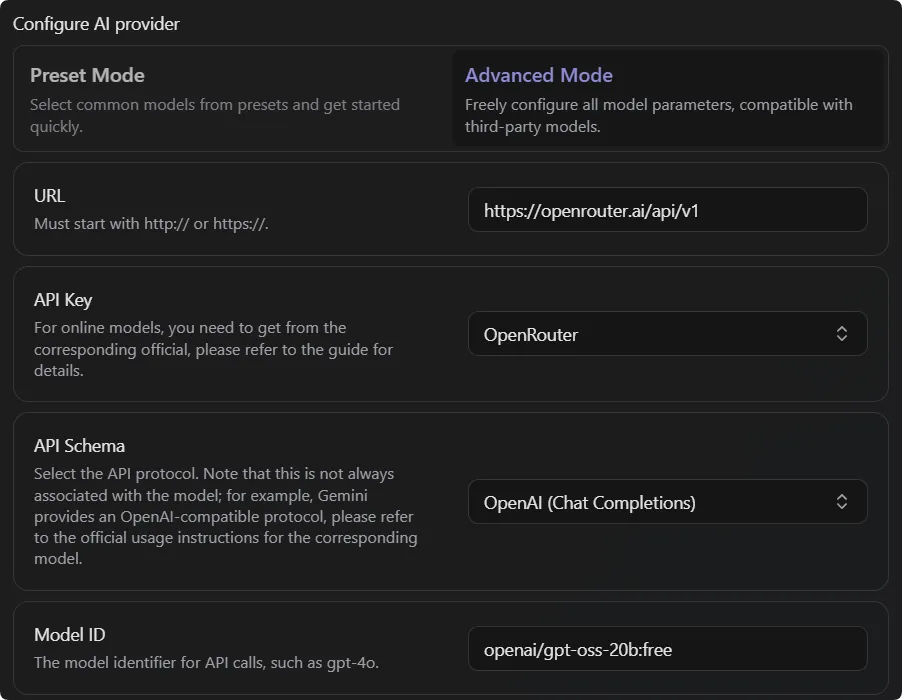
How to configure models when using a gateway provider (like OpenRouter)?
For example, if you are using the openai/gpt-oss-20b:free model within OpenRouter:
Why isn't my (unofficially supported) model provider working?
Everywhere supports a range of major model providers (e.g., OpenAI, Gemini, DeepSeek). For these officially supported providers, we strive to ensure their compatibility and stability.
For other mainstream model providers (such as LM Studio, Qwen, GLM, and Doubao) that are compatible with existing API schema, you can refer to the Other Providers guide to manually configure and use them via Advanced Mode.
However, there are many third-party or self-hosted model services that are compatible with the OpenAI API format. Due to limited resources, we cannot test and adapt to all unofficially supported model providers. If you encounter issues while using an unofficially supported provider, we recommend that you first contact the service provider for technical support or switch to an officially supported one.
The AI gives no response
If there is no response after asking a question (but status messages like Analyze Context are displayed), it might be due to an incorrect API Url configuration.
For example, a common mistake is entering https://api.openai.com instead of https://api.openai.com/v1.
How to find the correct API Url
-
If your model service provider is on Everywhere's official support list, please keep the default Url.
-
If you are using a third-party or self-hosted service, please refer to its official documentation to find the correct API Url (also known as "Endpoint").
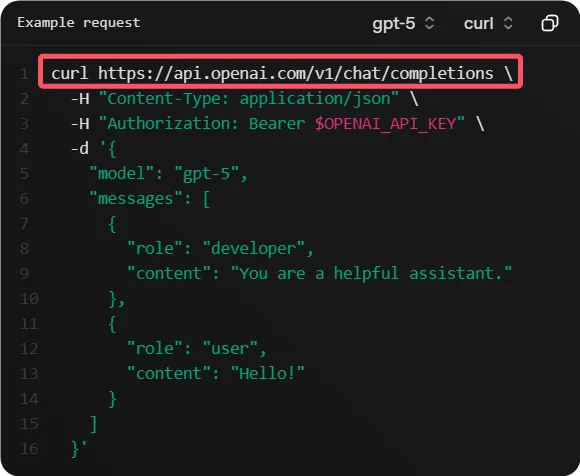
For an OpenAI-compatible API, you need to find an address like
https://api.example.com/v1/chat/completions, then remove the/chat/completionspart at the end to gethttps://api.example.com/v1, and enter this into theAPI Urlfield in Everywhere.
Why can't I read images?
Not all large language models support image input (i.e., "multimodal" capability).
If the model you are using (e.g., DeepSeek-V3.2) only supports text input, it cannot "see" or understand the images you send.
In this case, sending images usually results in an error saying "Model configuration is incorrect, model provider or model ID is missing or invalid, or the current model does not support image input/tool calls."
If you need the AI to analyze image content, please switch to a model that supports visual capabilities.
Why can't I use web search?
When using official platforms like ChatGPT, Gemini, or DeepSeek, web search is typically built-in. This is because these providers integrate search plugins directly into their web interfaces, allowing them to fetch real-time information before processing it with the language model.
However, when accessing these models via API, you are utilizing their core content generation capabilities, which do not natively include web search functionality.
Everywhere interacts with these models through their APIs. To empower your AI with web search capabilities, you can choose from the following two options:
- Everywhere Cloud Search (Recommended): We have officially launched the Everywhere Cloud Search service. You can enable web access instantly by using your account credits or the monthly search quota included in your subscription plan, with no complex configuration required.
- Custom Search Services: You can also configure your own API keys from external search providers (such as Google, Brave, Tavily, Bocha, etc.).
For more details, please navigate to the Web Search page in the main window to configure your settings.
Software Usage
Why can't I bring up the floating chat window?
If you press the hotkey but don't see the Everywhere floating window, there are usually two possible reasons:
- Hotkey Conflict: The hotkey you set may be the same as another software on your system (e.g., screenshot tool, input method).
- Solution: Try changing the hotkey in Everywhere's
Settings > Shortcutsand try again.
- Solution: Try changing the hotkey in Everywhere's
- Administrator Permissions: When you are active in a window running with administrator privileges (e.g., Task Manager, some installers), Everywhere also needs to run with administrator privileges to display on top of that window. This is due to Windows' User Account Control (UAC) mechanism, which uses "Integrity Levels" to isolate programs with different permissions, preventing lower-privilege applications from controlling higher-privilege ones.
- Solution: In Everywhere's
Settings > Common, click theRestart as Administratorbutton and try again.
- Solution: In Everywhere's
Why isn't PowerShell auto-approved?
By default, Everywhere requires manual approval for PowerShell commands to ensure system security. However, you can adjust this:
- Per-Conversation: When an execution request pops up, you can expand the options on the Allow Once button to enable auto-approval for the current chat.
- Global Auto-Approval: This can be enabled in
Chat Toolssettings. When enabled, all terminal operations will be automatically approved without manual confirmation. Improper use by the assistant may lead to serious system crashes or irreversible file loss. Enabling this option means you have assessed and are willing to assume the risk.
How is this guide?
Last updated on