Ollama
Configure Ollama to power your Everywhere assistant.
This tutorial will guide you step-by-step on how to connect to a local model from Ollama.
Notice
- Using Ollama with Everywhere is an advanced feature. It is recommended to configure and use it only after understanding how it works. Compatibility is not guaranteed.
- Please use Advanced Mode for manual setup.
Prerequisites
- Considering that local models are running, it is recommended to use a computer with good performance.
Steps
- Download and install the Ollama application from the Ollama official website.
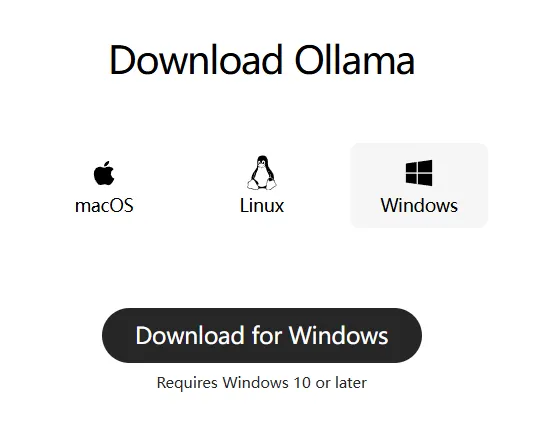
- After installation, open the Ollama application and wait for it to initialize. Then, open a command-line tool (such as PowerShell or CMD) and enter the following command to verify if the Ollama CLI is available:
ollama -v- If the command line outputs the version number of Ollama, the installation is successful. Otherwise, please refer to the Ollama official documentation. Next, you can choose and download a local model. Search for models supported by Ollama here. For example, to download the
gemma3:12bmodel:
ollama pull gemma3:12b- After the download is complete, enter
ollama listin the terminal to ensure that the downloaded model is in the results. - In Everywhere's Custom Assistant, switch to Advanced Mode:
- Set URL to
http://127.0.0.1:11434(Ollama's default address) - Set Model ID to
gemma3:12b(or the name of another model you downloaded).
- Set URL to
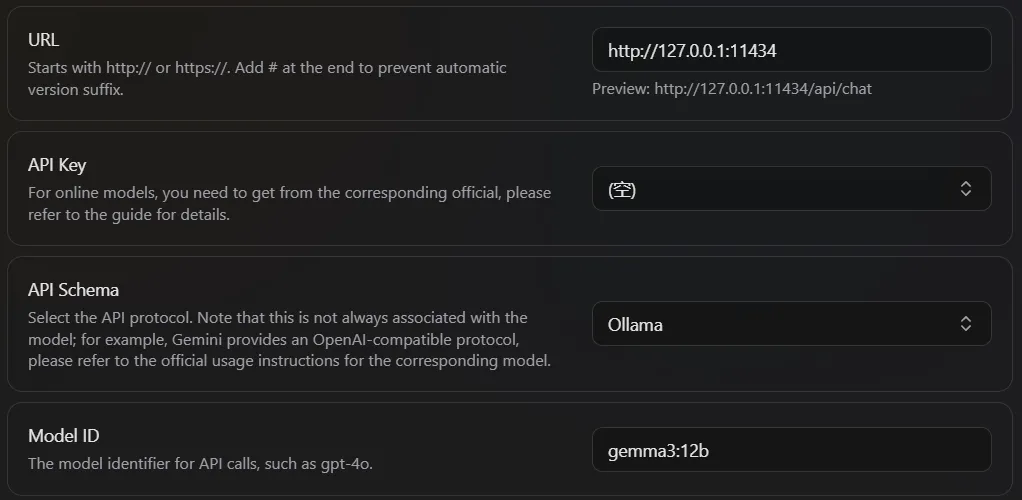
- Once the setup is complete, you can start using it.
FAQ
Chat message displays ModelDoesNotSupportTools
If you encounter a chat message displaying ModelDoesNotSupportTools when using an Ollama model, it usually means that the Ollama model you are using does not support the tool-calling feature. You can try switching to another model that supports tool calling, or disable the tool-calling feature in Everywhere to avoid this error.
How is this guide?
Last updated on