Prompts
Manage reusable system prompts, dynamic placeholders, and quick configuration templates in Everywhere.
System prompts are managed centrally on the Prompts page in the main window sidebar rather than edited separately inside each assistant. Multiple assistants can share and bind to any prompt saved here.
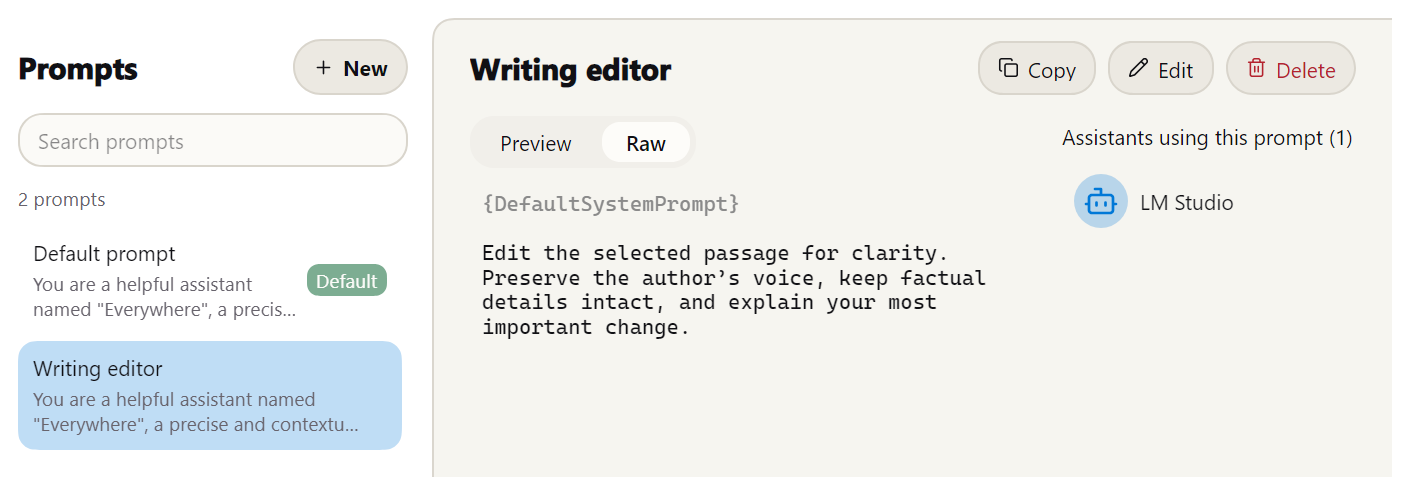
Built-In Default Prompt
Everywhere includes a built-in Default prompt. It cannot be deleted or overwritten directly, and any assistant without a custom prompt uses it automatically.
The built-in prompt tells the assistant to:
- Act as a concise, context-aware desktop assistant using screen context when available.
- Include current system information (
{OS},{Date},{SystemLanguage},{WorkingDirectory}). - Include instructions for your enabled skills (
{SkillsPrompt}). - Make independent tool calls in parallel when possible, keep new files inside the working directory unless asked otherwise, and avoid printing unnecessary raw tool-call code blocks.
Quick Configuration & Advanced Editing
When creating or editing a prompt, you can choose between two modes:
- Quick configuration: Build a well-structured prompt from preset choices without writing everything from scratch:
- Work scenarios (up to 3): General Q&A, Programming and development, Code review, Writing and editing, Data analysis, Learning and education, Translation and language, Product planning, Troubleshooting, Research and planning.
- Tone and style: Professional and rigorous, Friendly and patient, Concise and direct, Socratic guiding, Formal business, or Creative and exploratory.
- Answer detail: Concise, Balanced, or Detailed.
- More preferences: Persona, How should the assistant address you?, Organization (Automatic, Conclusion first, Step-by-step, Key points, Compare options, Examples first, Natural conversation), and Additional requirements.
- Switch to advanced editing: Edit the Prompt text directly with full Markdown and Available placeholders support, while watching the Live preview update on the right. Use Return to quick configuration anytime to switch back.
Available Placeholders
Custom prompt text supports the following dynamic placeholders:
| Placeholder | Description |
|---|---|
{DefaultSystemPrompt} | Inserts the full built-in default instructions so you can extend them without repeating baseline rules. |
{SkillsPrompt} | Inserts the summary list of all currently enabled skills. |
{Date} | Current date (e.g., April 17, 2026). |
{OS} | Current operating system. |
{SystemLanguage} | Current Everywhere interface language. |
{WorkingDirectory} | Current chat's working directory. |
Template Checks & Cache-Friendly Dates
- If a custom prompt omits
{SkillsPrompt}(and does not include{DefaultSystemPrompt}), the editor shows a warning so your assistant won't miss enabled skills. It also suggests adding{Date}if missing. - Use
{Date}rather than exact timestamps so your prompt prefix stays cache-friendly across turns within the same day.
Preview & Binding to Assistants
- Preview & Raw: Inspect both the Raw template and the rendered Preview (with placeholders resolved) in Prompts or inside an assistant's System Prompt tab.
- Copy preview: Click the Copy preview button in the Prompts header to copy the resolved prompt text.
- Assign to Assistants: Open Assistants > System Prompt and select any prompt from the dropdown (or click New Prompt / Manage Prompts). See Assistants.
How is this guide?
Last updated on