Text Selection
Use Everywhere's floating text selection toolbar to translate, explain, rewrite, or ask follow-up questions in place.
When you highlight text in another app, Everywhere can pop up a compact Selection Toolbar right next to your selection so you can run quick AI actions or ask follow-up questions without switching windows.
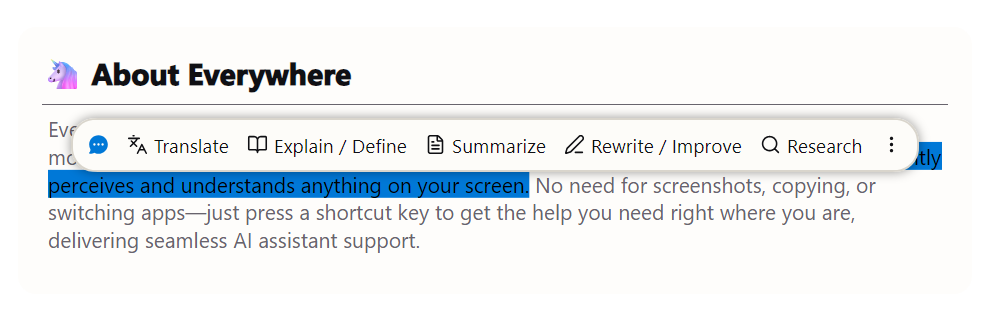
Built-In & Custom Actions
Everywhere includes 6 built-in selection actions:
- Translate: Translates selected text into your preferred/system language while preserving meaning and tone.
- Explain / Define: Explains words, concepts, names, or code snippets concisely.
- Summarize: Summarizes longer passages (appears automatically when you select 50 or more characters).
- Rewrite / Improve: Fixes grammar/spelling and improves clarity and flow.
- Research: Searches the web to verify facts and gather background context.
- Check Grammar: Lists grammar, spelling, and punctuation issues along with corrected text.
In Settings > Text selection > Manage Actions, you can:
- Turn individual actions on or off and drag to reorder them.
- Customize any built-in action's Name, icon, label visibility, and Prompt (with one-click reset), or click Add Custom Action.
- Set Maximum number of tools shown directly on the toolbar (
0–12, default5); extra enabled actions move into the More menu.
Free Input
When Allow free-form input is enabled (on by default), click Free input on the toolbar to open an inline input box right next to your selection and ask anything about the highlighted text.
Settings Reference (Settings > Text selection)
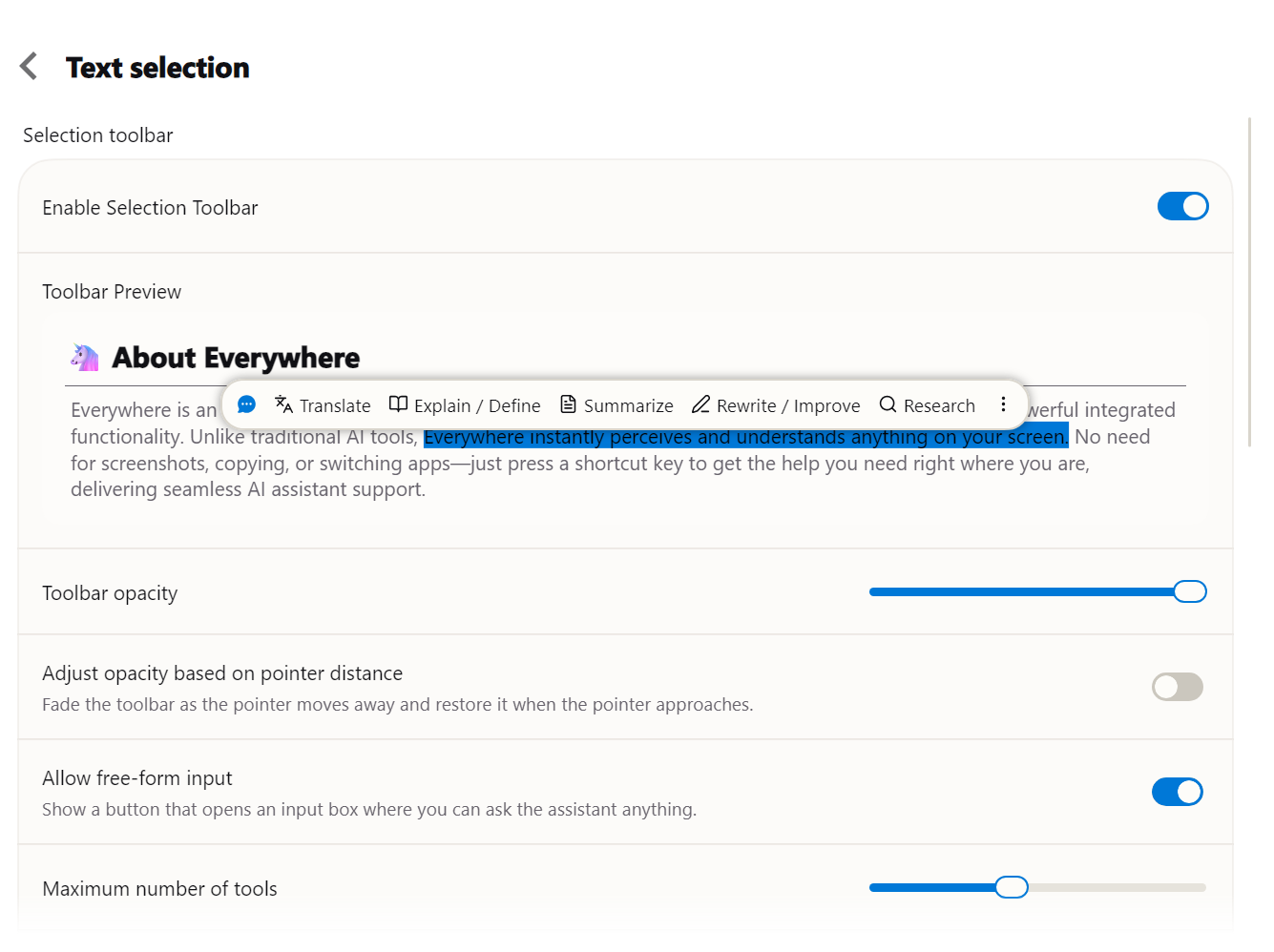
Selection toolbar
- Enable Selection Toolbar: Master toggle for the floating selection toolbar.
- Toolbar Preview: Interactive preview of the current toolbar layout.
- Toolbar opacity (
0.1–1.0, default1.0) & Adjust opacity based on pointer distance: Gently fades the toolbar when your cursor moves away and restores it as you move back. - Allow free-form input: Shows or hides the free-form question input button on the toolbar.
- Maximum number of tools & Manage Actions: Configure action order, prompts, and how many buttons appear directly on the bar.
Chat window
- Automatically add to chat: Automatically attaches selected text and its app context to the chat window when you highlight text (works independently of the floating toolbar).
Advanced
- Disable in fullscreen applications (default: on): Stops monitoring selections while a fullscreen app (such as a game or fullscreen video) is active.
- Use temporary chats from the toolbar (default: on): Starts toolbar chats as temporary chats that clear automatically when Everywhere exits. Turn this off to keep toolbar chats in regular history.
- Applications with text selection disabled: Completely disables text selection capture in listed apps (pick an open window, browse for an app, or enter a process name / macOS bundle ID).
- Applications with the selection toolbar hidden: Hides the floating toolbar in listed apps while still allowing automatic attachment to chat. You can also choose Don't show in this application directly from the toolbar's More menu.
Platform Notes
- Windows: Turn on Settings > Common > Install as a service if you need text selection inside elevated (administrator) windows.
- macOS: Requires Accessibility permission in System Settings > Privacy & Security; app exclusion rules match macOS bundle identifiers.
- Linux: Selection toolbar availability depends on your desktop environment (supported on Hyprland; not yet supported on X11, KDE Plasma, GNOME, or Niri).
How is this guide?
Last updated on